Trip
Deals
Each trip, booking, or opportunity is a Deal. This holds the pipeline stage, dates, villa, payment status, and financial rollups (revenue, cost, margin, tips, commission). This is the record you will use most.
A beginner-friendly walkthrough for Brandon and the Prestigia team: learn where everything lives, how to add a client, create a trip, connect services and partners, use reports, and verify the Phase 1 build.
Brandon asked for a document that shows how to use HubSpot as if everything is new. That is exactly what this is. It starts with where to click when you first log in, walks through adding a client, creating a trip, booking services, and reading your reports. The verification checklist at the end lets you confirm everything works.
Recommended setup: open this guide in one browser tab and HubSpot portal 51216875 in another tab. Work through the sections in order. Your checklist progress saves automatically so you can close the page and come back.
Each pass/follow-up decision and note saves to CloudNSite as you work. If you leave and come back, this page reloads your saved progress.
Connecting to review tracker...
After all checks are complete, choose a final decision at the bottom and click Submit completed review. That locks the review so CloudNSite can see it is done.
Review ID: phase1-verification-2026-05-13
Use this if you want the complete supporting evidence workbook alongside the guided review.
If you have never opened HubSpot before, this section shows you the basic layout so you are not lost when the walkthrough starts.
/51216875/ in the address.Once you are logged in, the top of the screen has a dark navigation bar. This is how you move between the main areas of HubSpot. Here is what the key menus contain:
Everything in HubSpot is a record. A Contact is a record. A Deal is a record. A Company is a record. When you open any record, you see:
HubSpot uses generic CRM terms. Here is what each term means for Prestigia so nothing feels foreign.
| What you call it | HubSpot calls it | Where to find it |
|---|---|---|
| A trip or booking | Deal | CRM > Deals > Trip Lifecycle pipeline |
| A client or guest | Contact | CRM > Contacts |
| A vendor, venue, or partner | Company | CRM > Companies |
| A booked service (chef, boat, DJ, etc.) | Line Item | Inside a Deal record, in the Line Items card |
| The service catalog / menu | Product | Sales > Products (or search Products) |
| A villa or property | Villa (custom object) | CRM > Villas, or from a Deal association |
| Trip stage (inquiry, booked, active, etc.) | Deal Stage | On the Deal record, pipeline stage bar at top |
| Revenue / what the guest pays | price_mxn_num | Line Item properties, rolled up to the Deal |
| What you pay the vendor | vendor_cost_mxn_num | Line Item properties, rolled up to the Deal |
| Your profit on a trip | gross_margin_mxn_calc_num | Deal properties (revenue minus cost) |
| Guest intake form | Form | Marketing > Forms |
| Monday operating view | Dashboard | Reporting > Dashboards |
Think of HubSpot as a set of connected folders. The Deal (trip) is at the center. Everything else connects to it so the team can operate the trip and report on it.
Each trip, booking, or opportunity is a Deal. This holds the pipeline stage, dates, villa, payment status, and financial rollups (revenue, cost, margin, tips, commission). This is the record you will use most.
Clients and guests are Contacts. This holds email, phone/WhatsApp, language, guest details, allergies, medical notes, emergency contacts, and consent status. A Contact gets associated to a Deal so the trip knows who the guest is.
Vendors, venues, affiliates, and travel partners are Companies. Keeping providers separate from clients makes reporting clean. Examples: Mango Deck, Casa Malca, a transport company.
Products are the service menu (the catalogue of things you offer — boats, chefs, photographers, etc.). Line Items are the actual services booked on a specific trip, with price, cost, vendor, currency, and payment status.
Villas are a custom object with identity, capacity, owner/ops, and confidence details. They are separate from Companies so property data does not get mixed with vendor data. There are 28 villas (full Tulum + Los Cabos roster).
Dashboards display charts and tables built from Deals, Line Items, Contacts, Companies, Products, and Villas. If a report looks wrong, the fix is usually on the source record (the Deal or Line Item), not the dashboard itself.
This section walks through the tasks Prestigia will do every day. Follow along in HubSpot as you read each step.
The main areas you will use are Deals, Contacts, Companies, Products, and Dashboards.
When a new guest or client reaches out, create a Contact record for them. You can also do this while creating a Deal.
Every trip, booking, or opportunity should be a Deal in the Trip Lifecycle pipeline. This is the main record Prestigia works with daily.
As a trip progresses, update the Deal stage. On the Deal record, you will see a horizontal bar at the top showing all 10 stages. Click the stage you want to move to:
When a guest books a chef, boat, DJ, photographer, or any other service, add it as a Line Item on the Deal. This is how revenue, cost, and margin get tracked per trip.
Vendors, venues, affiliates, and travel partners are represented as Companies. This keeps provider data separate from guest data.
Promoter/affiliate commissions use a separate model called the Promoter Commission Schedule (a custom object with 44 rows). This is separate from normal vendor costs. Commission tracking per Line Item uses fields like commission_amount_mxn_num, commission_status, and referring_agency on the Deal.
Reports live in dashboards. Prestigia has two dashboards built and ready.
Brandon asked how to generate reports. The dashboards are already built — you do not need to create reports from scratch. Here is how to get answers to the most common questions.
| Question you have | Where to look | Step by step |
|---|---|---|
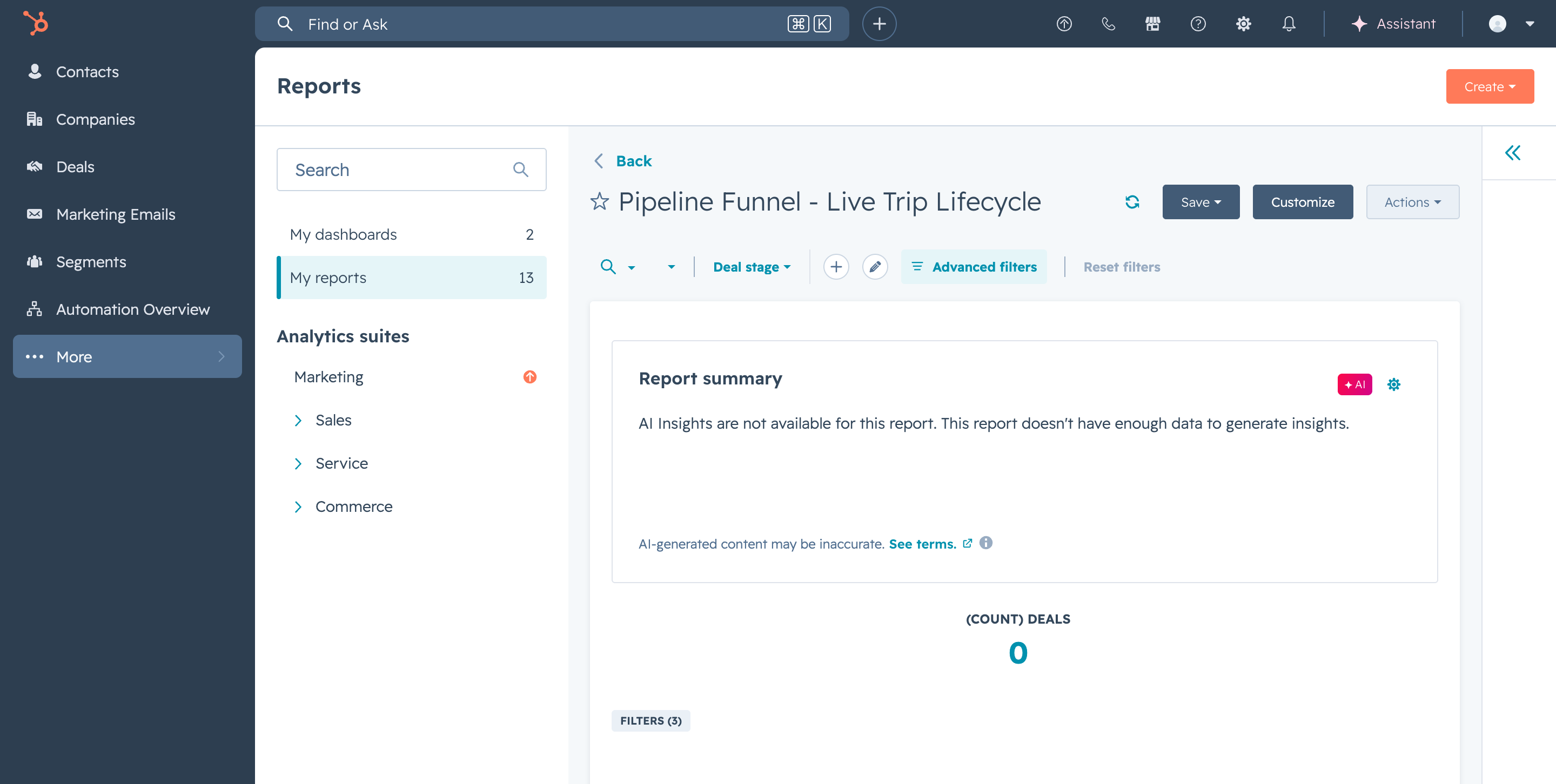
| How many trips are active or coming up? | Monday Operating Dashboard > Pipeline Funnel tile | Open the Monday dashboard. The Pipeline Funnel tile shows a bar chart of deals by stage. Each bar represents how many trips are at each stage of the lifecycle. Click a bar to see those specific deals. |
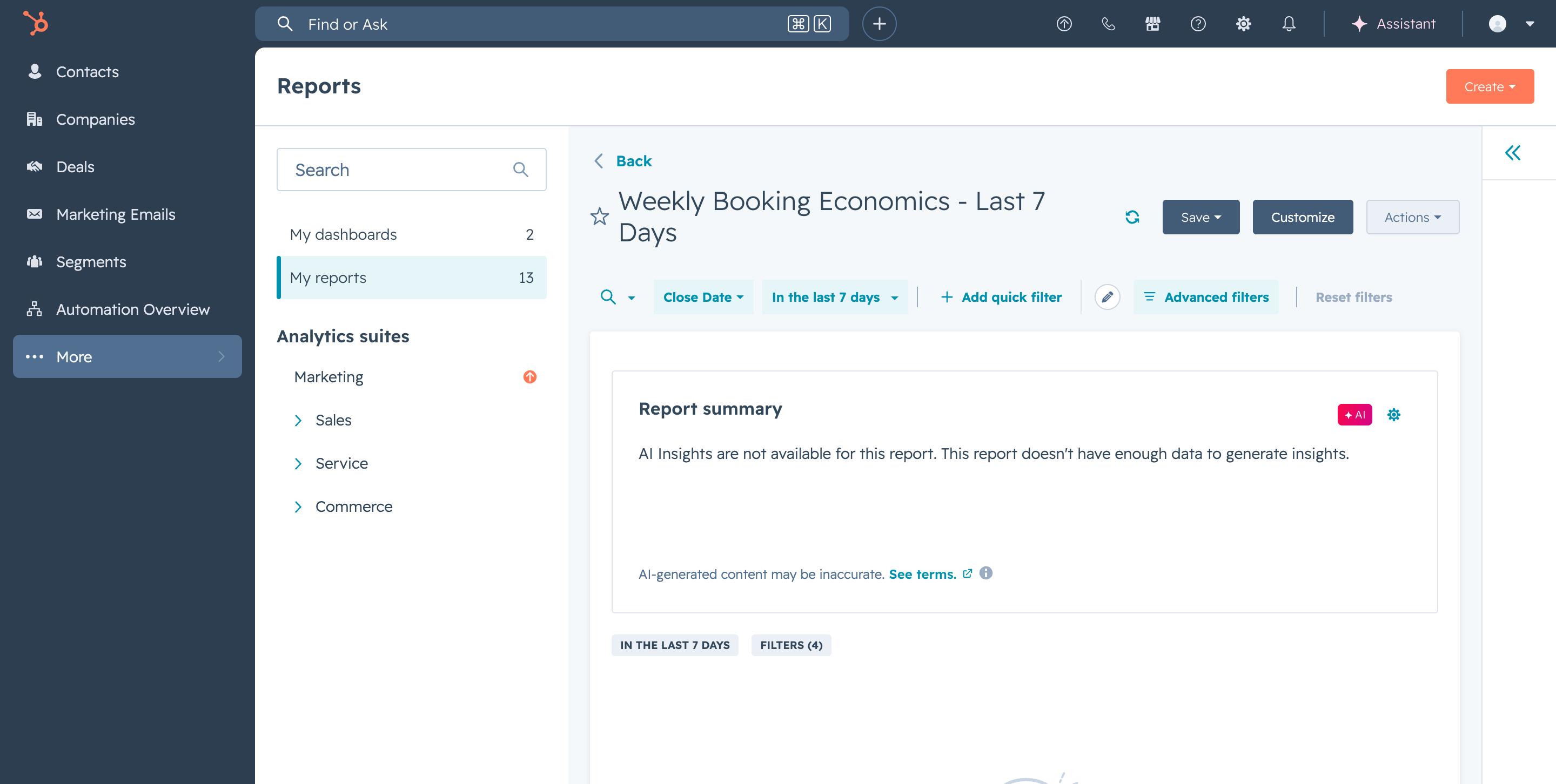
| How much revenue did we do this week? | Monday Operating Dashboard > Weekly Booking Economics tile | This table shows deals closed in the last 7 days with their revenue, cost, and margin. If it is empty, it means no deals were closed-won in the past 7 days (which is normal early on). |
| What is our revenue and margin by villa? | Booking Economics Dashboard > Booking Economics by Villa tile | Open the Booking Economics dashboard. The by Villa tile breaks down revenue and cost per villa property. Click into any villa bar to see the underlying deals. |
| What is our revenue by month? | Booking Economics Dashboard > Booking Economics by Close Month tile | This shows a monthly trend chart. It groups deals by their close date month and shows revenue, cost, and margin per month. |
| Which services are we booking most? | Booking Economics Dashboard > Line Item Economics by Service Category tile | This table breaks down Line Items by service category (Chef, Boat, Transport, etc.) showing count, revenue, and cost per category. |
| Are any deals missing cost data? | Monday Operating Dashboard > Missing Cost QA tile | This shows Line Items that have revenue but no vendor cost entered. Use this to identify where you need to enter cost information to get accurate margins. |
| Are any deals losing money? | Monday Operating Dashboard > Low or Negative Margin Deals tile | This catches deals where cost exceeds revenue. Click into any flagged deal to investigate the Line Items. |
| What tips are owed this week? | Monday Operating Dashboard > Tip Queue by Recipient tile | This groups owed tips by recipient/vendor. Use this on Monday to see what tip payouts need to happen. See the Monday Routine section for the full process. |
| Which payment links are pending? | Monday Operating Dashboard > Pending Payment Links tile | Shows deals with pending payment links due in the next 7 days. Use this for collection follow-up. |
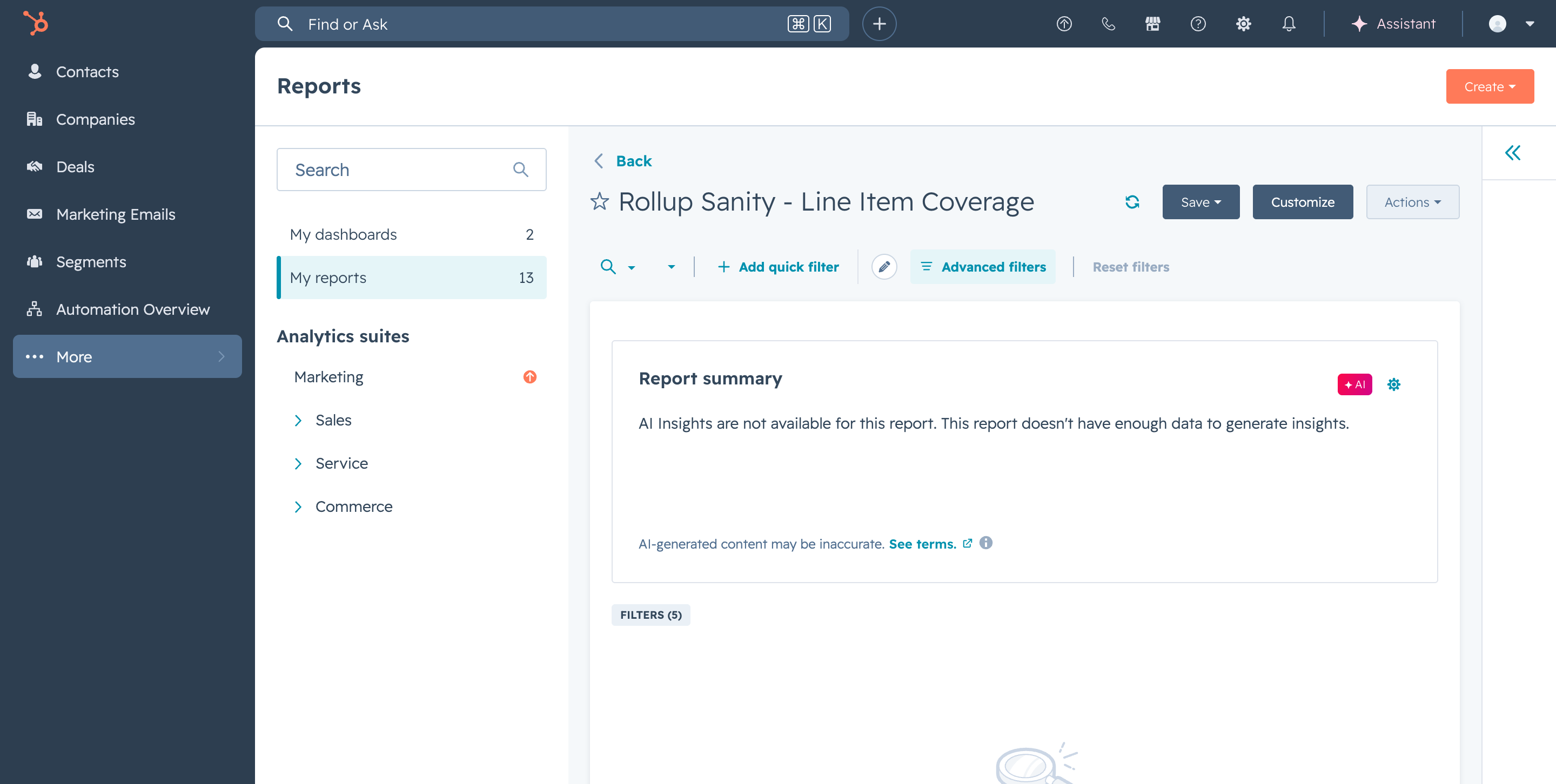
| Do our rollup numbers add up? | Monday Operating Dashboard > Rollup Sanity tile | This is a QA tile. It catches deals where Line Item counts or rollup fields look inconsistent. Check this first thing Monday to confirm data integrity. |
This is the recommended weekly operating cadence for Brandon and Bella. Open the Monday Operating Dashboard and work through these steps in order. Takes about 20-30 minutes.
Open Monday Operating Dashboard. Click Actions > Refresh or reload the page to pull fresh data.
Look at the Rollup Sanity - Line Item Coverage tile first. If live deals are showing missing rollups right after data entry, wait 10-15 minutes before treating it as a data problem — HubSpot rollups are not instant.
Check the Pipeline Funnel tile to see how many trips are at each stage. Look for anything stuck in an unexpected stage.
Check the Weekly Booking Economics tile for any deals closed in the last 7 days. Confirm revenue, cost, and margin look reasonable.
Check the Pending Payment Links tile. This shows payment links due in the next 7 days. Bella: Follow up on any overdue or upcoming payments.
Check the Tip Queue by Recipient tile. Bella: Prepare the tip payout list grouped by vendor/recipient. Brandon: Approve payouts. After paying, Bella updates each Line Item: set tip_payout_status, tip_payout_method, tip_paid_at, and tip_payout_batch. Always update the Line Item, not the Deal rollup — the Line Item is the source of truth.
Check the Commission Queue by Referring Agency tile. Brandon: Review accrued commissions, approve/pay outside HubSpot, then update commission_status and commission_paid_at on the Line Items.
Look for any deals that have been sitting in the same stage for too long. Open them, check notes, and decide if action is needed or if the stage should be updated.
After the main review: follow up on overdue payment links, clean up missing vendor costs, review tips-owed data, and handle any villa data cleanup flagged during the review.
HubSpot CRM foundation: schema, properties, pipeline, record layouts, historical data import, dashboards, saved views, intake forms, Products catalogue, Villa object, Promoter Commission Schedule, one live Deal workflow, and operator documentation.
Custom React intake form, WhatsApp AI automation, on-submit backend workflows, SLA escalations, full vendor normalization backlog, privacy page publishing on Squarespace, and any other Phase 2 automation.
If the item blocks basic CRM structure, data visibility, or reporting inputs — it is a Phase 1 correction. If it is deeper automation, custom UX, or operational expansion — it is Phase 2.
Click any link below to go directly to that area of HubSpot (you must be logged in to portal 51216875).
| Item | Expected value | Notes |
|---|---|---|
| Portal | 51216875 | Prestigia Mexico HubSpot portal. |
| Pipeline | Trip Lifecycle / 894702972 | 10 stages: Inquiry, Qualified, Quoted, Deposit Received, Pre-Trip Planning, Active Trip, Post-Trip, Closed Won, Closed Lost, Cancelled. |
| Contacts | 1,293 total (1,280 keyed + 13 pre-existing) | Updated after AJ review on 2026-05-11. |
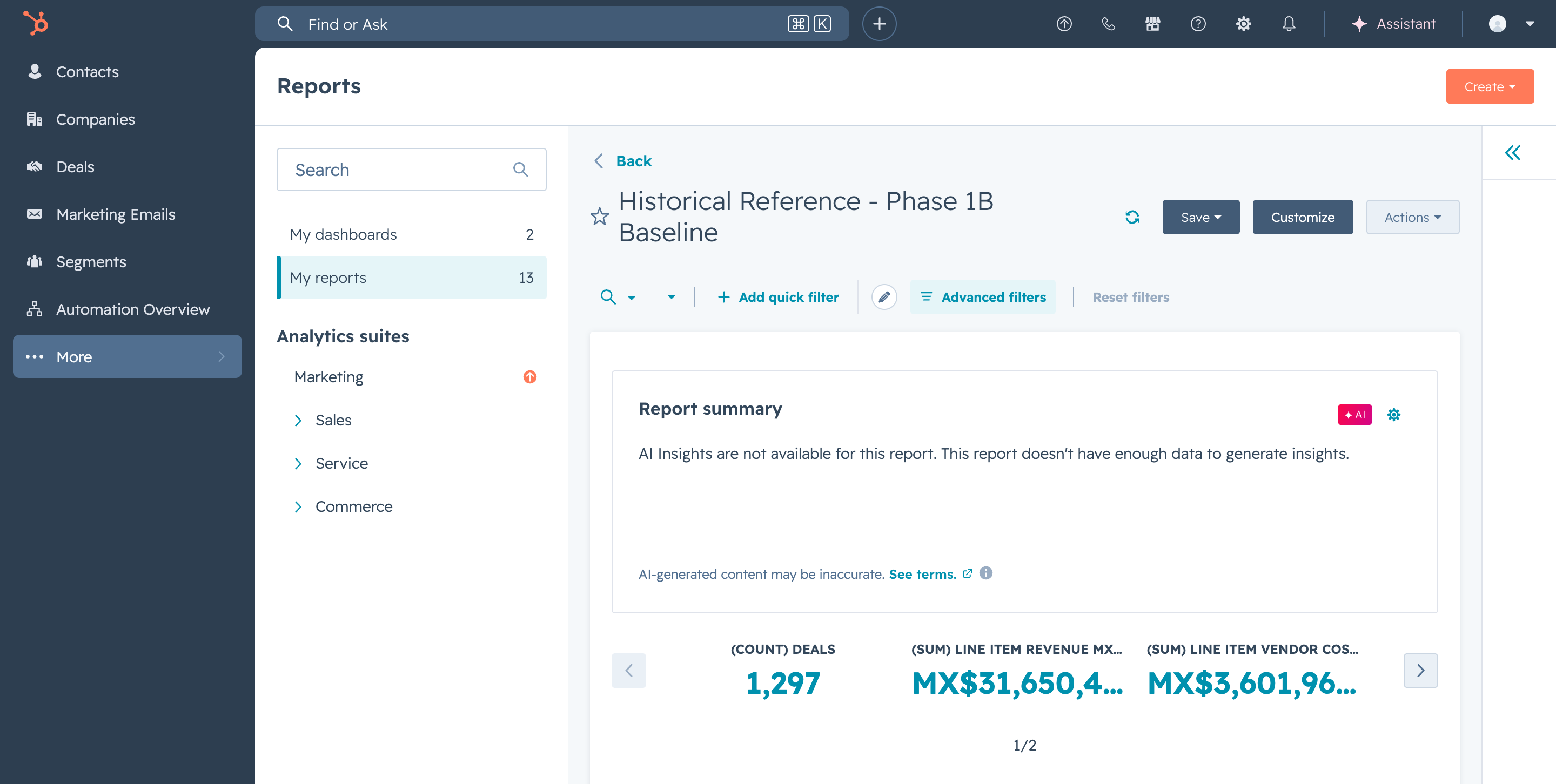
| Deals | 1,297 historical Deals | One pre-existing "Belen Bach Party" Deal is on the default pipeline, intentionally excluded from reporting. |
| Line Items | 1,233 historical Line Items | All flagged display-only and excluded from Phase 1 cash reports. |
| Companies | 80 keyed Companies | Vendors, affiliates, venues, and retained operational companies. |
| Products | 63 canonical + 305 historical = 368 total | Canonical Products have is_canonical_catalog_item=true. |
| Villa custom object | 28 Villa records | Full Tulum + Los Cabos roster. |
| Promoter Commission Schedule | 44 rows | Effective-dated commission rows for 4 agencies. |
| Dashboards | 2 dashboards / 13 tiles verified | Screenshot proof included below. |
| Forms | 2 forms (EN + ES), 77 fields / 31 groups each | Prestigia Guest Intake and Prestigia Guest Intake - ES. |
| Workflow | 1 live workflow (ID 1814035254) | "Phase 1 - Default New Deal Historical Flag" — auto-marks new deals as live, not historical. |
This is the pipeline you will use for all trips. The stages go in order from first contact to final resolution.
| Order | Stage | Stage ID | Probability | Type | What it means |
|---|---|---|---|---|---|
| 0 | Inquiry | 1350489672 | 10% | Open | Guest reached out, no quote yet |
| 1 | Qualified | 1350489673 | 20% | Open | Real interest confirmed, gathering requirements |
| 2 | Quoted | 1350489674 | 40% | Open | Quote/proposal sent to guest |
| 3 | Deposit Received | 1350489675 | 70% | Open | Guest paid deposit, trip is confirmed |
| 4 | Pre-Trip Planning | 1350489676 | 75% | Open | Booking services, coordinating vendors |
| 5 | Active Trip | 1357428606 | 90% | Open | Guest is currently on-site in Tulum/Cabo |
| 6 | Post-Trip | 1357428607 | 95% | Open | Trip ended, collecting final payments, tips, feedback |
| 7 | Closed Won | 1350489679 | 100% | Closed | Trip fully completed and settled |
| 8 | Closed Lost | 1350489680 | 0% | Closed | Guest decided not to book |
| 9 | Cancelled | 1350489681 | 0% | Closed | Trip was booked but then cancelled |
Work through each check below. Your decisions and notes save automatically to CloudNSite. When all 12 checks are complete, submit the review at the bottom.
Open both dashboard links below. You are checking that the dashboards exist, load without errors, and tiles are visible.
Open Deals and make sure the Trip Lifecycle pipeline exists with all 10 stages.
This proves that new trips enter the system correctly. The strongest check is to create a test Deal. If you prefer not to, inspect an existing recent Deal.
Open a Deal and check that Contacts are associated. Then open one Contact record.
Check that vendors and venues exist as Company records.
Check that travel partner/promoter commissions are modeled separately from normal vendor costs.
Check that the service menu exists with canonical items.
Check that revenue, cost, margin, tips, and service details are visible on Line Items and rolled up to the Deal.
Check that the Villa custom object exists with the 28 canonical villas.
Check that the guest intake forms exist in both English and Spanish.
Check that records have organized card layouts so you are not digging through raw property lists.
Based on everything above, make your overall Phase 1 decision.
Every report on the dashboards pulls from specific fields on specific records. This table shows what needs to be filled in for each type of reporting to work.
| What you want to report on | Fields that feed it | Where to enter the data |
|---|---|---|
| Pipeline status / trip stage | pipeline, dealstage | Deal record — stage bar at top |
| Trip timing | Check-in/out dates, close date, service date | Deal properties + Line Item properties |
| Client/guest info | Contact association, language, WhatsApp, consent | Contact record, associated to Deal |
| Villa / property | villa_name, Villa association | Deal properties + Villa custom object |
| Service category breakdown | service_category, service_subcategory | Line Item + Product properties |
| Revenue | price_mxn_num (Line Item) → line_item_revenue_mxn_rollup_num (Deal) | Line Item price → auto-rolls up to Deal |
| Vendor cost | vendor_cost_mxn_num (Line Item) → line_item_cost_mxn_rollup_num (Deal) | Line Item cost → auto-rolls up to Deal |
| Gross margin | gross_margin_mxn_calc_num | Auto-calculated on Deal (revenue - cost) |
| Payment status | next_payment_status, next_payment_due_date, next_payment_link_url | Deal properties |
| Tips | tip_amount_mxn_num, tip_payout_status, tip_recipient | Line Item properties → auto-rolls up to Deal |
| Commissions | commission_amount_mxn_num, commission_status, referring_agency | Line Item + Deal + Promoter Commission Schedule |
| Historical vs. live | is_historical_display_only_bool, exclude_from_phase1_cash_reports_bool | Deal + Line Item (auto-set by workflow for new records) |
These items are known, tracked, and planned for. They should not block your sign-off unless you decide otherwise.
| Item | Owner | Status |
|---|---|---|
| Aviso de Privacidad page | CloudNSite drafts content; David publishes to Squarespace at /aviso-de-privacidad | Required before broadly launching the intake form. Form is built and ready; the privacy page link needs to go live. |
| ARCO rights inbox | Brandon / Prestigia confirms | Confirm whether privacy@prestigiamexico.com is a real, monitored inbox or provide a different address. |
| Cabo Chef currency check | CloudNSite | 3 historical Chef Line Items may need currency flipped from MXN to USD. CloudNSite will check after sign-off — Brandon may see 1-3 updates in the audit log. |
| Vendor normalization backlog | Phase 2 | 169 Line Items have unmatched vendor names (mostly Antromex x130). These vendors are visible but not yet matched to Company records. |
| Villa name normalization | Phase 2 | 126 deals have free-text villa names that do not match the 28 canonical villas. |
| Custom React intake + automation | Phase 2 | On-submit workflow, Deal/Contact auto-creation, WhatsApp/email notifications, conditional form UI. |
| Marketing subscription type | Optional | HubSpot portal settings item. Not blocking Phase 1. |
These screenshots were captured during the Phase 1 build to verify that dashboard tiles render correctly and data flows through the system.
The workbook and PDF remain available here before or after you submit the review.